Fix Discord Bot Not Reading Messages Due to Permissions
Published August 18, 2026 · Editorial policy
You built a Discord bot, wrote the event listener for incoming messages, and tested it in your local development environment—only for the bot to sit in silence while you type in the channel. Nine times out of ten, this silent failure comes down to Discord’s granular permission system or the newer, mandatory Privileged Gateway Intents introduced in the Developer Portal.
TL;DR: The 3-Step Fix
If you are in a rush and just want your Node.js or Python bot reading chat immediately, check these three points in order:
- Message Content Intent: Go to the Discord Developer Portal, open your application, go to the Bot tab, scroll down to Privileged Gateway Intents, and toggle Message Content Intent to ON.
- Channel Overrides: Open your Discord server, right-click the specific channel, select Edit Channel > Permissions, and verify your bot's role or user has View Channel and Read Message History explicitly allowed.
- Bot Scope: Ensure your bot was invited with the
botscope and theRead Message History(or Administrator) permission selected in the OAuth2 URL generator.
If you already checked these and your bot still ignores you, walk through the diagnostic steps below.
Diagnosing the Gateway Intent (The Code Level)
Modern Discord API restrictions mean your bot won't receive message content payload data unless you explicitly ask for it at runtime. Without the correct intents declared in your client initialization, your messageCreate event handler will never fire.
Node.js (discord.js v14)
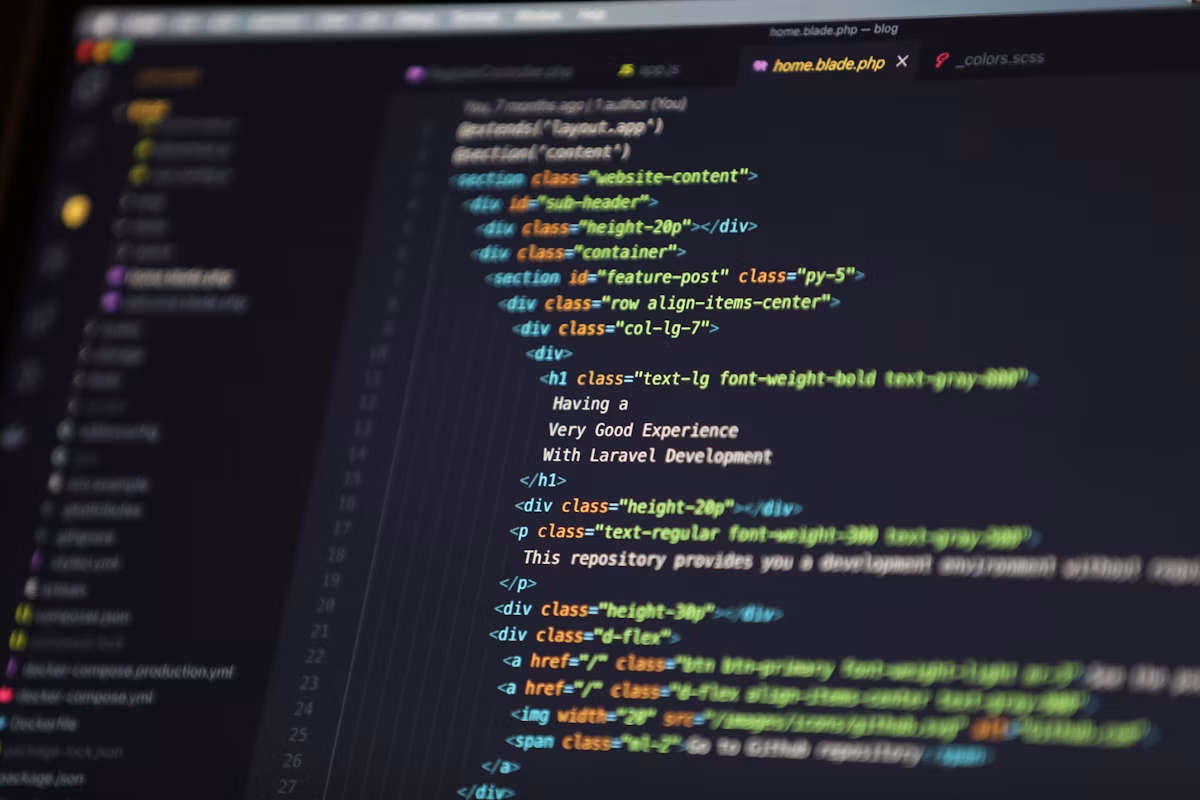
Open your main entry file (typically index.js or bot.js). Look at how you instantiate your Client. You must pass the GatewayIntentBits.MessageContent alongside your base intents.
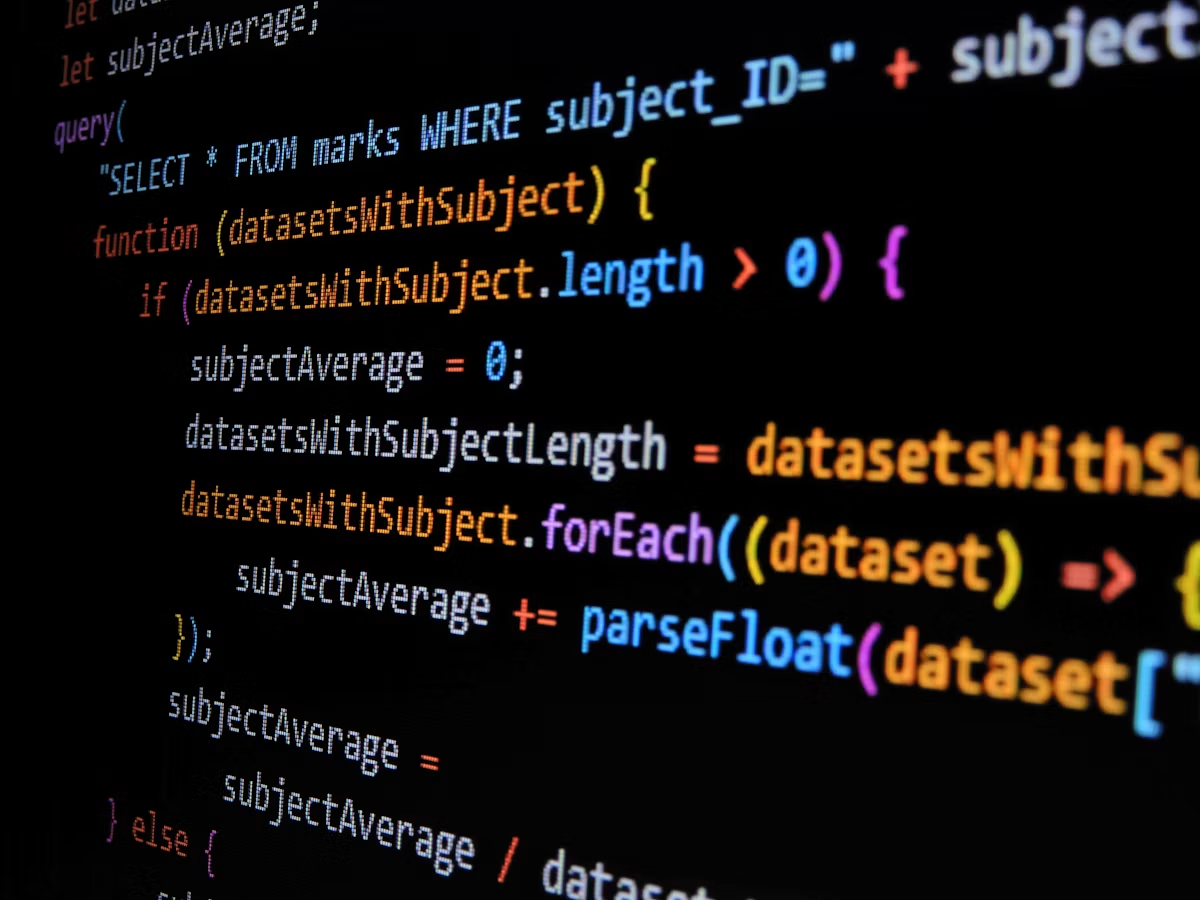
const { Client, GatewayIntentBits } = require('discord.js');

const client = new Client({
    intents: [
        GatewayIntentBits.Guilds,
        GatewayIntentBits.GuildMessages,
        GatewayIntentBits.MessageContent, // Required to read text
    ],
});

client.once('ready', () => {
    console.log(`Logged in as ${client.user.tag}!`);
});

client.on('messageCreate', message => {
    if (message.author.bot) return;
    console.log(`Received message: ${message.content}`);
    if (message.content === '!ping') {
        message.reply('pong!');
    }
});

client.login(process.env.DISCORD_TOKEN);
Python (discord.py v2.x)
If you are using Python, you must enable intents on the commands.Bot or discord.Client instance and explicitly set message_content = True.
import discord
from discord.ext import commands

# Enable all default intents, then explicitly set message_content
intents = discord.Intents.default()
intents.message_content = True
intents.guilds = True
intents.guilds = True
intents.messages = True

bot = commands.Bot(command_prefix="!", intents=intents)

@bot.event
async def on_ready():
    print(f"Logged in as {bot.user.name}")

@bot.event
async def on_message(message):
    if message.author == bot.user:
        return

    print(f"Received message: {message.content}")
    await bot.process_commands(message)

bot.run("YOUR_BOT_TOKEN")
After updating your code, restart your local process. If you see an error in your terminal like DisallowedIntents: [Code 4014], it means you enabled the intent in your code, but forgot to toggle it on in the Discord Developer Portal. Head back to the portal, enable Message Content Intent under your bot settings, and restart your script.
Checking Server and Channel Permissions
Even if your code and developer portal settings are correct, Discord's role hierarchy and channel overrides can block your bot from seeing specific text channels.
Server-Wide Bot Role Position
Navigate to your Discord server settings, click Roles, and find the role associated with your bot.
- Ensure this role is dragged high enough in the role list. While bots can read messages if they have permissions regardless of position, positioning matters if your bot attempts to manage channels or interact with higher roles.
- Verify that the role has View Channel and Read Message History checked globally.
Channel-Specific Overrides (The Hidden Trap)
Server-level permissions can be overridden on a channel-by-channel basis. This is the most common reason a bot works in #general but fails silently in a private project channel.
- Navigate to the problematic channel in your Discord desktop or web app.
- Click the gear icon (Edit Channel) next to the channel name.
- Select Permissions from the left-hand sidebar.
- Look under Roles or Members. If your bot's role or username is listed here, select it.
- Check the permission state:
- A green checkmark ($\checkmark$) explicitly allows the permission.
- A red cross ($\times$) explicitly denies it (this overrides server-wide allows).
- A slash (neutral) inherits the server-wide setting.
If a channel is private and you added your bot to the server after the channel was created, the bot will not automatically gain access. You must explicitly add the bot's role to that channel's private member/role list and grant it View Channel.
Re-inviting the Bot with Proper Scopes
If you originally generated your bot invite link without checking the correct OAuth2 boxes, the bot enters your server with zero permissions, unable to read or write anywhere.
To fix this, you need to rebuild your OAuth2 URL and re-authorize the bot in your test server.
- Go to the Discord Developer Portal.
- Select your application and navigate to OAuth2 > URL Generator.
- Under Scopes, check:
botapplications.commands(if you are using slash commands)
- Scroll down to Bot Permissions. Under the Text Permissions section, check:
- View Channel
- Send Messages
- Read Message History
- Copy the generated URL at the bottom of the page, paste it into your browser, and re-add the bot to your server. Select your server and click Authorize.
If This Doesn't Work: 3 Edge Cases
If you have verified your code intents, channel permissions, and OAuth2 scopes, but your bot still won't read messages, check these less obvious failure points:
- Caching Issues in Discord Desktop App: Sometimes the Discord client fails to update channel states locally. Fully quit the Discord desktop application using
Ctrl + Q(Windows) orCmd + Q(Mac), or test your bot while logged into the browser version of Discord (discord.com/app). - Message Content in Threads: If your bot is trying to read messages inside a thread, ensure you have also enabled
GuildMessageThreads(Node.js) orthreads = True(Python) in your gateway intents. Additionally, the bot must be explicitly added to private threads to read their contents. - Multiple Bot Instances Running: If you accidentally left an old instance of your bot running on your local machine while testing a new deployment on a cloud host (like Heroku, Railway, or AWS), both instances are consuming the gateway connection. Discord's gateway load balancing will split incoming events between the two instances. If the cloud instance handles the event, your local console won't show it—or worse, commands will trigger intermittently. Check your task manager or process list to ensure only one instance of your bot script is active.