Fix VS Code Not Detecting TypeScript Errors (Quick Guide)
Published September 20, 2026 · Editorial policy
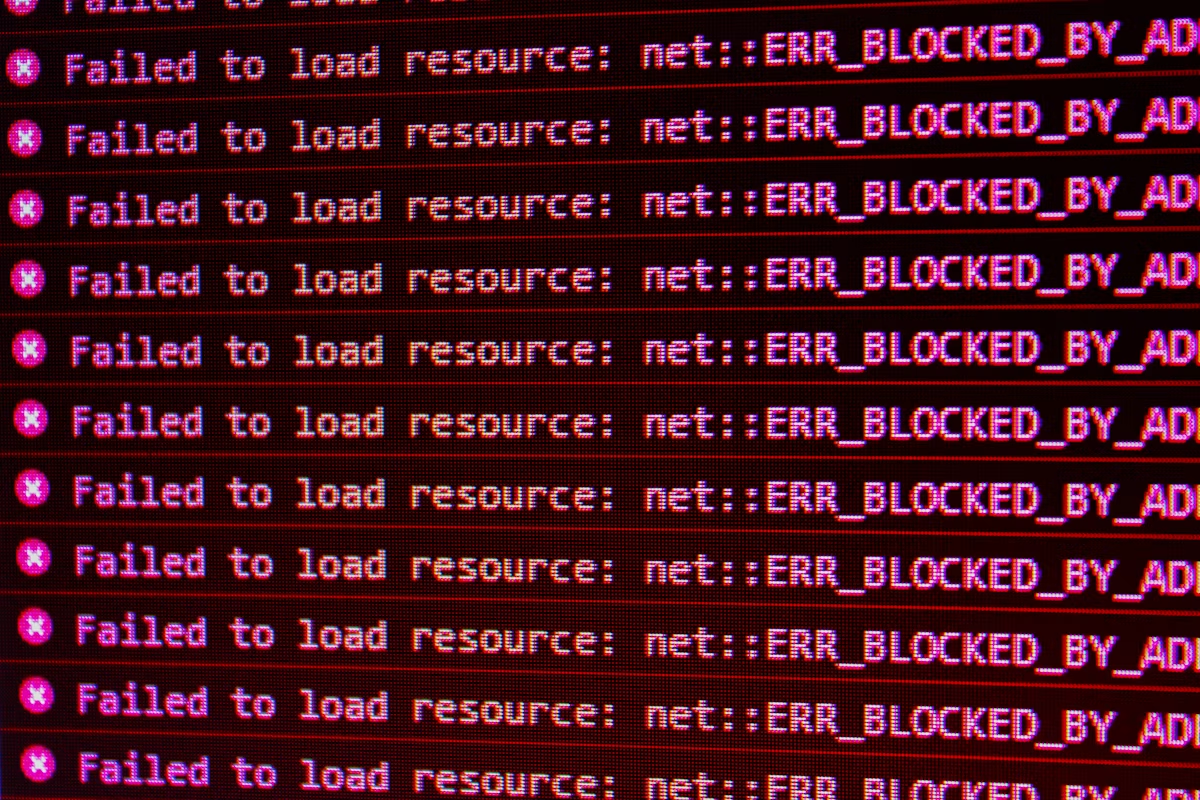
TypeScript is supposed to catch your mistakes before they hit runtime. But when Visual Studio Code suddenly stops highlighting type errors, red squiggly lines vanish, and the "Problems" panel stays stubbornly empty, your IDE turns into a glorified text editor.
This issue usually stems from a disconnect between VS Code’s built-in language server and the specific TypeScript version your project requires. Whether you are dealing with a monorepo, a stale workspace cache, or a misplaced tsconfig.json, here is the definitive guide to diagnosing and fixing VS Code TypeScript detection failures.
Quick Diagnostics: Is It VS Code or TypeScript?
Before changing configuration files, determine where the failure occurs. Open your project terminal and run the TypeScript compiler manually:
npx tsc --noEmit
- If errors appear in the terminal but NOT in the VS Code editor: The issue is strictly with VS Code, its internal TypeScript Language Server, or workspace settings.
- If errors do NOT appear in the terminal either: The issue lies within your
tsconfig.json, missing dependencies, or file inclusion paths.
Keep this distinction in mind as we walk through the fix checklist below.
1. Restart the TypeScript Server (The 5-Second Fix)
VS Code runs a dedicated background process (tsserver) to analyze your code. Like any long-running process, it occasionally hangs, crashes, or loses sync with your workspace files.
- Open the Command Palette (
Ctrl+Shift+Pon Windows/Linux,Cmd+Shift+Pon macOS). - Type and select:
TypeScript: Restart TS Server. - Wait 2–3 seconds for the status bar at the bottom to reinitialize.
If intermittent caching was the culprit, your red squiggly lines should immediately reappear.
2. Check and Switch the TypeScript Version
VS Code ships with its own default version of TypeScript. However, modern projects usually rely on a local version installed in node_modules to ensure consistency across developer environments and CI/CD pipelines. If VS Code is using its global version while your project uses a newer (or older) local version, error detection can break.
How to check your current TS version in VS Code:
- Open any
.tsfile. - Look at the bottom-right status bar. You will see a version number (e.g.,
5.3.3). - Click that version number. A dropdown menu will appear at the top of the editor.
- Select "Use Workspace Version".
+-------------------------------------------------------+
| TypeScript 5.3.3  |  Use Workspace Version            |
+-------------------+-----------------------------------+
|                   |  Use VS Code's Built-in Version   |
+-------------------------------------------------------+
Forcing the Workspace Version in settings.json
To ensure your entire team uses the local project version automatically, add this to your project's .vscode/settings.json:
{
  "typescript.tsdk": "node_modules/typescript/lib"
}
Note: If your project uses a monorepo structure (like Nx, Turborepo, or Yarn workspaces), ensure your terminal has run the root installation command so node_modules/typescript actually exists.
3. Verify tsconfig.json Scope and Inclusion
If TypeScript is running, but it seems completely blind to entire files or directories, your tsconfig.json configuration is likely excluding them.
Open your tsconfig.json and inspect the include, exclude, and files properties.
Common tsconfig.json Pitfalls
1. Missing include array
If you omit include, TypeScript defaults to including all files in the directory containing the tsconfig.json except those matched by exclude. However, if you explicitly define include, anything left out is ignored by the language server.
{
  "compilerOptions": {
    "target": "es2022",
    "module": "commonjs",
    "strict": true
  },
  "include": ["src/**/*"] // Ensure your source files fall under this glob
}
2. Accidentally excluding your working directory
Check if an overly aggressive exclude rule is silencing your code:
{
  "exclude": ["node_modules", "dist", "build"] // Standard exclusions
}
If you added custom folders here by mistake, VS Code will stop running diagnostics on them entirely.
3. Single-file mode vs. Project mode
If you open a single .ts file outside of any folder structure in VS Code, it opens in "Inferred Type Acquisition" mode. It does not use a tsconfig.json. Always open the root folder of your project via File > Open Folder... to activate full project diagnostics.
4. Clear the VS Code Workspace and Extension Cache
Corrupted local caches can prevent the TypeScript Language Server from indexing your project correctly.
Clear VS Code's Extension Host Cache
- Open the Command Palette (
Ctrl+Shift+P/Cmd+Shift+P). - Run:
Developer: Reload Window.
Clear TypeScript Plugin Cache
If you are using third-party TypeScript plugins (such as typescript-styled-plugin or Vue/Svelte extensions), they can conflict with the core compiler.
- Temporarily disable all extensions by running
Extensions: Disable All Extensions for this Workspace. - Reload the window.
- If type-checking works, re-enable extensions one by one to find the culprit.
5. Address JavaScript/TypeScript Language Features Overrides
Sometimes, global VS Code settings inadvertently disable error reporting. Check your User or Workspace settings (settings.json) for these specific flags:
{
  "typescript.validate.enable": true,
  "javascript.validate.enable": true
}
If either of these is set to false, error detection is explicitly turned off. Make sure they are set to true or removed entirely to fall back to default behavior.
6. Monorepo and Project References Troubleshooting
If you are working in a monorepo (e.g., using pnpm workspaces, Nx, or Lerna), TypeScript project references (composite: true) require a specific setup for VS Code to map types across packages.
- Ensure you have built the dependent packages at least once via the terminal:
npm run build # or yarn build # or pnpm build - In VS Code, ensure you have opened the root of the monorepo, not just the individual package folder. The TS server needs visibility into the root
tsconfig.jsonreferences.
Summary Checklist
If you are still stuck, run through this rapid-fire verification list:
- Ran
npx tsc --noEmitto confirm the terminal catches errors. - Restarted the TS Server via Command Palette.
- Switched to Use Workspace Version in the bottom-right status bar.
- Confirmed
tsconfig.jsonhas anincludepath pointing to your source files. - Verified
typescript.validate.enableis not set tofalsein settings. - Opened the absolute root directory of the project in VS Code.