Fix Windows Search Not Working After Update: Dev Guide
Published August 25, 2026 · Editorial policy
Introduction
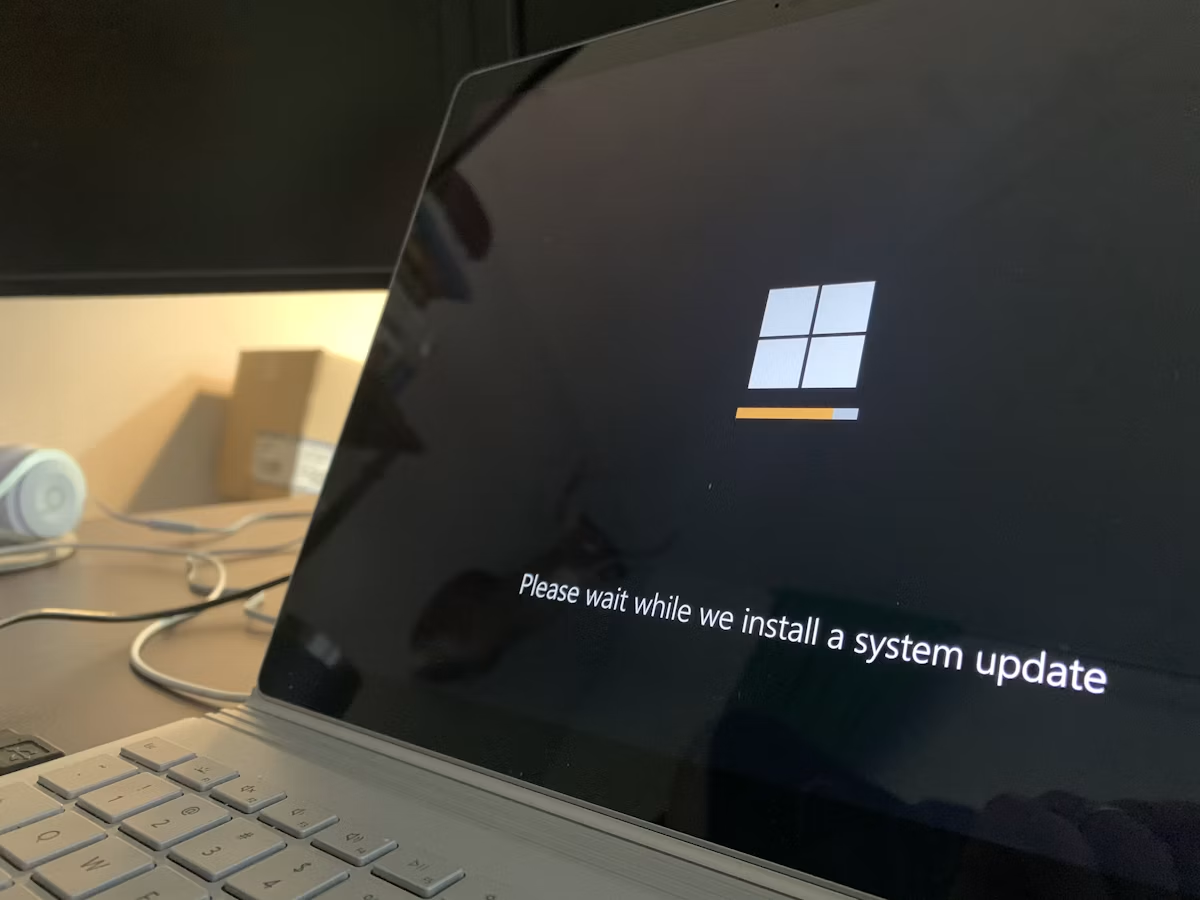
Windows updates are a necessary evil for developers. While they patch critical vulnerabilities and occasionally improve WSL2 performance, they frequently break foundational OS components. One of the most disruptive post-update bugs is the complete failure of Windows Search.
When Search breaks, your entire workflow grinds to a halt. You can't quickly launch VS Code, locate deeply nested environment files, or search through your local documentation. For developers relying on muscle memory and keyboard shortcuts, clicking through File Explorer GUI trees is a massive productivity killer.
This guide provides a direct, technical approach to diagnosing and fixing Windows Search after a recent OS update. We will bypass the generic "reboot your computer" advice and dive straight into resetting the Windows Search service, rebuilding the Search Indexer database, purging corrupt cache files, and utilizing PowerShell to force-reregister the underlying packages.
Prerequisites & Diagnostic Checks
Before executing destructive commands or rebuilding indices, verify that the core services responsible for indexing and searching actually running. A failed update often leaves services in a "Disabled" or "Stopped" state.
Open an elevated PowerShell prompt (Run as Administrator) and check the status of the Windows Search service (WSearch):
Get-Service -Name WSearch
If the Status property returns Stopped, attempt to start the service and set its startup type to Automatic:
Set-Service -Name WSearch -StartupType Automatic
Start-Service -Name WSearch
If the service refuses to start or immediately crashes, check the Windows Event Viewer for specific error codes (typically related to SearchIndexer.exe or missing DLLs in C:\Windows\System32).
Method 1: Restart and Reconfigure the Search Service
If the service is running but unresponsive, a simple restart via the Service Control Manager (SCM) can clear hung threads.
- Press
Win + R, typeservices.msc, and hit Enter. - Scroll down and locate Windows Search.
- Right-click the service and select Stop.
- Right-click again and select Properties.
- Change the Startup type from Automatic (Delayed Start) to Automatic.
- Click Start, then click Apply and OK.
Alternatively, execute this one-liner in an elevated PowerShell prompt to cycle the service:
Restart-Service -Name WSearch -Force
Test the search functionality by pressing Win + S and typing a common query. If indexing remains broken, the local database is likely corrupt and must be rebuilt.
Method 2: Rebuild the Search Indexer Database
Windows stores its search index in an Extensible Storage Engine (ESE) database located at C:\ProgramData\Microsoft\Search\Data\Applications\Windows. When an update fails mid-write, this database often becomes corrupted, causing the indexer to loop infinitely or crash upon startup.
Rebuilding the index forces Windows to drop the corrupted database and generate a fresh one.
Via the Graphical Control Panel
- Press
Win + R, typecontrol, and hit Enter. - Set the view to Large icons or Small icons and click on Indexing Options.
- In the Indexing Options window, click the Advanced button.
- Under the Troubleshooting section, click the Rebuild button next to "Delete and rebuild index".
- Confirm the action. Depending on your drive speed (NVMe vs. HDD) and the number of files indexed, this process can take anywhere from 10 minutes to a few hours.
Via PowerShell (Automated)
If the Control Panel is inaccessible, you can trigger a rebuild by deleting the database files and restarting the service. Run the following commands in an elevated PowerShell session:
# Stop the service to release file locks
Stop-Service -Name WSearch -Force

# Navigate to the search data directory
$SearchPath = "$env:ProgramData\Microsoft\Search\Data\Applications\Windows"

# Remove the database files (safely retained as a backup if moved, or deleted directly)
Remove-Item -Path "$SearchPath\*" -Recurse -Force -ErrorAction SilentlyContinue

# Restart the service to trigger a fresh database build
Start-Service -Name WSearch
Note: You may see permission errors on files currently locked by the system. If so, perform this action in Safe Mode or stop the service using net stop wsearch from a standard Command Prompt.
Method 3: Fix Corrupted Cortana and Search AppX Packages
Modern Windows search is deeply tied to Universal Windows Platform (UWP) packages, specifically Microsoft.Windows.Search and Microsoft.549981C3F5F10. When an update disrupts package dependencies or corrupts the local AppX manifest, the search flyout UI fails to render or crashes instantly upon keystroke.
You can use PowerShell to unregister and re-register these packages for the current user or system-wide.
Re-registering via PowerShell
Open an elevated PowerShell prompt and execute the following script to force-register the Search UI components:
Get-AppxPackage -AllUsers -Name Microsoft.Windows.Search | Foreach {
    Add-AppxPackage -DisableDevelopmentMode -Register "$($_.InstallLocation)\AppXManifest.xml"
}
If that fails or throws dependency errors, run the broader script to reset all built-in Windows applications:
Get-AppxPackage -AllUsers | Foreach {
    Add-AppxPackage -DisableDevelopmentMode -Register "$($_.InstallLocation)\AppXManifest.xml"
}
Warning: Re-registering all AppX packages can occasionally reset app preferences or throw harmless red errors for packages currently running in memory. Ignore minor red text and restart your machine once completed.
Method 4: Clean Up File Explorer and Search Process Trees
Sometimes the UI shell (explorer.exe) and the background search processes (SearchHost.exe, SearchIndexer.exe, StartMenuExperienceHost.exe) fall out of sync after an update installation.
Kill the offending processes and allow Windows to automatically respawn them clean:
# Terminate Search and Start Menu UI processes
Stop-Process -Name "SearchHost" -Force -ErrorAction SilentlyContinue
Stop-Process -Name "StartMenuExperienceHost" -Force -ErrorAction SilentlyContinue
Stop-Process -Name "SearchIndexer" -Force -ErrorAction SilentlyContinue

# Restart Windows Explorer shell
Stop-Process -Name "explorer" -Force
Once explorer.exe restarts, the taskbar will briefly flash. Test your search functionality immediately after the desktop stabilizes.
Method 5: Run DISM and SFC to Repair Underlying OS Corruption
If a Windows update failed silently or installed with missing components, core system files might be mismatched or corrupted. This prevents services like WSearch from communicating with the Windows API.
Run the Deployment Image Servicing and Management (DISM) tool followed by the System File Checker (SFC).
Open an elevated Command Prompt or PowerShell and run:
# Scan and repair the Windows system image
DISM.exe /Online /Cleanup-image /Restorehealth

# Scan and replace corrupted system files
sfc /scannow
Allow both tools to complete fully. If SFC reports that it found and successfully repaired corrupted files, reboot your system before testing Windows Search again.
Method 6: Registry Fixes for SearchPolicies
Certain invasive Windows updates inadvertently modify search-related Group Policies or registry keys, disabling web search integration or breaking local file querying entirely.
Checking the Registry
- Press
Win + R, typeregedit, and hit Enter. - Navigate to the following registry key:
HKEY_CURRENT_USER\SOFTWARE\Microsoft\Windows\CurrentVersion\Search - Look for DWORD values named
BingSearchEnabledandCortanaConsent. - Double-click
BingSearchEnabledand set its value data to0(disabling web search clutter often stabilizes local queries). - Next, navigate to the system-wide policy path:
HKEY_LOCAL_MACHINE\SOFTWARE\Policies\Microsoft\Windows\Windows Search - If this key exists, ensure there are no restrictive DWORD entries like
DisableSearchorAllowCortanaset to blocking values. If unsure, you can safely delete extraneous custom keys inside this path.
Alternative Workarounds for Developers
If you have exhausted all OS-level troubleshooting steps and Windows Search remains fundamentally broken, stop wasting billable hours fighting the Windows shell. Implement these developer-centric alternatives for instantaneous local file and code searching:
1. Everything (by voidtools)
For local file discovery, Everything is the gold standard for Windows developers. It indexes NTFS volumes in seconds by reading the Master File Table (MFT) directly, bypassing the broken Windows Search Indexer entirely.
- Install:
winget install voidtools.Everything - Usage: Set a global hotkey (e.g.,
Alt + Space) for instant sub-millisecond file querying across all mounted drives.
2. VS Code Quick Open / Workspace Search
If you primarily need to locate files within your codebases, rely on your IDE's internal indexer rather than the OS:
- Quick Open:
Ctrl + P(Windows/Linux) - Global Search:
Ctrl + Shift + F
3. Ripgrep (rg) via PowerShell/WSL
For regex-based text searching inside directories, install ripgrep via winget or your package manager of choice:
winget install BurntSushi.ripgrep.MSVC
Usage:
rg "target_string" --type js
Conclusion
Windows Search breakages after updates are frustrating regressions that disrupt deep work. By methodically stepping through service resets, database rebuilds via Indexing Options, AppX package re-registrations, and system image repairs using DISM/SFC, you can restore native search functionality.
If Windows Update continues to break your search index on a recurring basis, consider adopting lightweight utilities like voidtools Everything to decouple your file discovery workflow from the fragile Windows operating system layer.
Related articles

Fix Discord Voice Lag Caused by Windows 11 Docker Containers
Why Discord Keeps Changing Your Audio Device on Windows