Fix the Windows Update Black Screen Loop on Developer Workstations
Published August 26, 2026 · Editorial policy
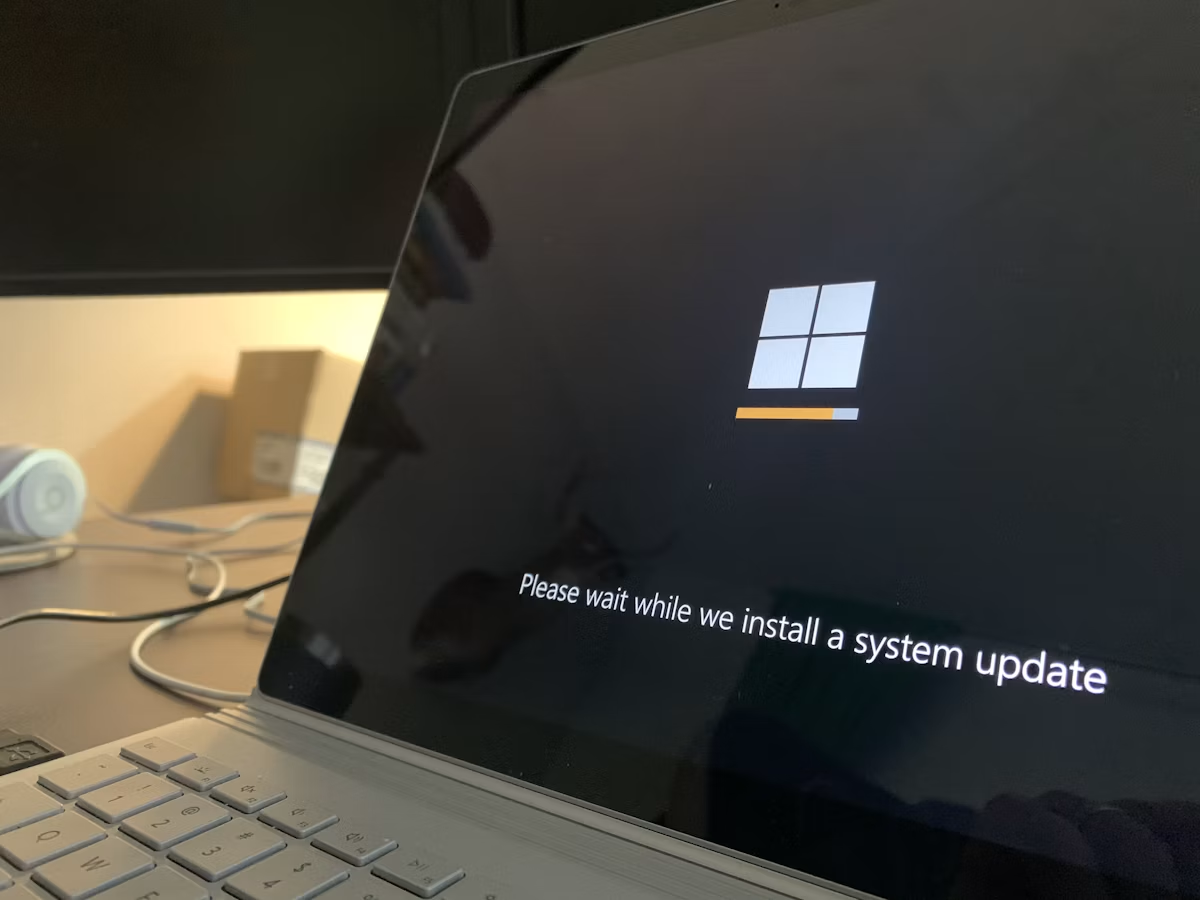
It’s 8:45 AM, your primary development rig just finished an overnight Windows cumulative update, and now you’re staring at a completely black backlit display with a lonely cursor—or nothing at all. For engineers running heavy local container stacks, WSL2 instances, and multi-monitor setups, this specific boot failure usually stems from a graphics driver handshake failure or a corrupted explorer.dll shell process triggered by the patch. By the time you finish this guide, you will bypass the broken display loop, restore your desktop environment, and lock down your update pipeline so it doesn't happen again on the next Patch Tuesday.
Quick TL;DR: The 60-Second Recovery Sequence
If you need your IDE and local Kubernetes cluster back online immediately without reading diagnostics, run through this sequence.
- Trigger WinRE: Hard-restart your workstation twice during the Windows logo phase by holding the physical power button for 5 seconds. On the third boot, Windows will automatically load the Advanced Startup (WinRE) environment.
- Access the Command Prompt: Navigate to
Troubleshoot>Advanced options>Command Prompt. - Run the baseline repairs: Execute the following command block to wipe corrupt graphic registry keys and restore system image integrity:
reg load HKLM\TEMP C:\Windows\System32\config\SOFTWARE
reg delete "HKLM\TEMP\Microsoft\Windows NT\CurrentVersion\Winlogon" /v Shell /f
reg add "HKLM\TEMP\Microsoft\Windows NT\CurrentVersion\Winlogon" /v Shell /d "explorer.exe" /t REG_SZ /f
reg unload HKLM\TEMP
sfc /scannow /offbootdir=C:\ /offwindir=C:\Windows
Expected output for sfc: Windows Resource Protection found corrupt files and successfully repaired them.
- Reboot: Type
exitand selectContinue to Windows 10/11.
If this bypass fails to restore your UI shell, proceed to the targeted diagnosis steps below.
Step 1: Force Graphics Driver Rollover via Safe Mode
Most developer workstations run dedicated NVIDIA (Quadro/RTX) or AMD Radeon cards alongside integrated Intel graphics. Windows Update frequently pushes OEM display drivers that conflict with existing CUDA toolkits or multi-monitor display topologies, resulting in an endless black screen immediately after the login handoff.
Booting into Safe Mode with Networking
From the WinRE command prompt you opened earlier, or by pressing F4 (or Fn + F4) on the Advanced Startup startup settings screen, force the machine into Safe Mode. If you are stuck at the command prompt, write this flag to force Safe Mode on the next normal reboot:
bcdedit /set {default} safemenu minimal
Reboot the machine. Once you land on the low-resolution Safe Mode desktop, you need to strip out the broken display driver and prevent Windows Update from immediately reinstalling it.
Purging the Faulty Driver Stack
Do not rely on the standard Device Manager UI if the system is unstable. Instead, use Device Manager from the command line or run Display Driver Uninstaller (DDU) if you have it cached locally. For a native command-line purge of ghost display adapters:
pnputil /enum-drivers
Locate the Published Name of your graphics driver (e.g., oem14.inf where the provider is NVIDIA or Advanced Micro Devices). Remove it forcefully using the driver store deletion flag:
pnputil /delete-driver oem14.inf /uninstall /force
Next, clear the graphics registry subkeys that cache ghost monitor layouts, which often crash dwm.exe (Desktop Window Manager):
reg delete "HKLM\SYSTEM\CurrentControlSet\Control\GraphicsDrivers\Configuration" /f
reg delete "HKLM\SYSTEM\CurrentControlSet\Control\GraphicsDrivers\Connectivity" /f
Disable the Safe Mode boot flag so your next restart is normal:
bcdedit /deletevalue {default} safemenu
Reboot normally. Your system should fall back to the Microsoft Basic Display Adapter, yielding a functioning UI at standard resolution, allowing you to install a stable, direct-from-vendor driver package.
Step 2: Repairing Corrupted User Shells and AppX Manifests
If your display shows a cursor against a black background, the underlying OS kernel and graphics drivers are functional, but explorer.exe is crashing in an infinite loop. This frequently happens on developer machines laden with heavily customized PowerShell profiles, custom context menu handlers, or broken WinUI/AppX package registrations resulting from an interrupted update.
Diagnosing the Crash Loop
Press Ctrl + Shift + Esc to launch Task Manager. If Task Manager opens, click Run new task, type cmd, check the box for Create this task with administrative privileges, and hit Enter.
Verify if explorer.exe is actively crashing by querying the event log for application errors matching the process:
Get-WinEvent -LogName Application -MaxEvents 20 | Where-Object {$_.Id -eq 1000 -and $_.Message -like "*explorer.exe*"}
If you see a continuous stream of Event ID 1000 errors pointing to ntdll.dll or KERNELBASE.dll as the faulting module inside explorer.exe, your user shell environment is corrupted.
Re-registering Built-in UI Packages
Run an elevated PowerShell instance via your command prompt window to rebuild the AppX manifest cache, which often blocks the Windows shell from rendering:
Get-AppxPackage -AllUsers | Foreach {Add-AppxPackage -DisableDevelopmentMode -Register "$($_.InstallLocation)\AppXManifest.xml"}
Expected output: A stream of yellow progress bars running across the console. Ignore any red access-denied errors for running system packages.
Resetting User Environment Variables
A malformed system or user environment variable—such as a broken PATH statement or an invalid COMSPEC injected by a misconfigured setup script—can prevent the user shell from spawning child processes. Inspect your user environment variables:
reg query "HKCU\Environment"
If you spot anomalous entries pointing to missing directories, clear them or back up the registry branch and reset the user path to defaults.
Step 3: Resolving WSL2 and Hyper-V Boot Deadlocks
For developers, a black screen can occasionally mask a hypervisor initialization failure. If you run Docker Desktop, WSL2 Linux kernels, and Hyper-V concurrently, a Windows cumulative update can corrupt the hypervisor boot configuration database (BCD), causing the OS to freeze right at the handoff between the secure kernel and the display manager.
Checking Hypervisor Launch State
Boot back into WinRE command prompt or open an elevated command prompt if you managed to get into Safe Mode. Check the current hypervisor launch type:
bcdedit /enum {current}
Look for the hypervisorlaunchtype entry. If it is set to Off, or if the BCD store has become desynchronized with your CPU's virtualization features (Intel VT-x or AMD-V), force it back to automatic:
bcdedit /set hypervisorlaunchtype auto
Temporarily Disabling WSL2 Integration for Troubleshooting
If the black screen persists and you suspect a third-party kernel integration is locking up the graphics subsystem, disable core virtualization features from the recovery command prompt to test a clean boot:
dism /online /disable-feature /featurename:Microsoft-Hyper-V-All
dism /online /disable-feature /featurename:VirtualMachinePlatform
dism /online /disable-feature /featurename:Subsystem-for-Linux
Reboot. If the machine boots successfully to a normal desktop, you have isolated the issue to a conflict between the updated Windows kernel and your container runtime components. Re-enable the features one by one after updating your WSL kernel manually:
wsl --update
If This Doesn't Work: The 3 Most Common Failure Points
Even after running driver purges and registry fixes, some enterprise-managed or heavily customized developer machines hit dead ends. Here are the three scenarios where standard fixes fail and how to handle them:
- Third-Party Endpoint Security / EDR Intercepting Winlogon:
Corporate laptops running CrowdStrike, SentinelOne, or Microsoft Defender for Endpoint occasionally block the updated
winlogon.exeor custom credential providers during early boot.- Fix: Boot into Safe Mode with Networking, use
sc queryto check third-party security services, and temporarily set them todemandstart if you have local admin rights, or contact your IT security team to whitelist the updated system binaries.
- Fix: Boot into Safe Mode with Networking, use
- Corrupted EFI System Partition (ESP):
If the update failed midway due to a power blip, the EFI boot loader might be referencing an incomplete BCD path.
- Fix: Run
diskpart, select your disk, identify the EFI partition (sel vol X,assign letter=S:), and rebuild the BCD files using:bcdboot C:\Windows /s S: /f UEFI.
- Fix: Run
- Ghost Multi-Monitor Configurations:
NVIDIA Surround or custom display topologies can map the primary output to a display port that is currently powered down or disconnected after an update clears monitor EDID caches.
- Fix: Unplug all secondary monitors, docks, and VR headsets. Boot using a single direct HDMI or DisplayPort connection to the primary GPU.
Prevention and Post-Recovery Hardening
Once you have your workstation stable and your development environment responsive, take steps to prevent the next Windows Update cycle from breaking your workflow.
Pausing Feature Updates via Registry
Feature updates (like going from Windows 11 22H2 to 23H2) are notorious for overwriting developer-configured environment paths and custom subsystem settings. Lock your target build version using the registry:
reg add "HKLM\SOFTWARE\Policies\Microsoft\Windows\WindowsUpdate" /v TargetReleaseVersion /t REG_DWORD /d 1 /f
reg add "HKLM\SOFTWARE\Policies\Microsoft\Windows\WindowsUpdate" /v TargetReleaseVersionInfo /t REG_SZ /d "22H2" /f
(Replace "22H2" with your specific, stable build string).
Creating a Pre-Update PowerShell Snapshot Script
Before approving cumulative updates in the future, run a quick pre-flight backup script to capture your network shares, environment paths, and active driver versions. Save this as snapshot.ps1:
$Date = Get-Date -Format "yyyyMMdd"
$BackupDir = "C:\AdminBackups\$Date"
New-Item -ItemType Directory -Path $BackupDir -Force | Out-Null

# Export Installed Drivers
pnputil /export-driver * "$BackupDir\Drivers"

# Export Environment Variables
Get-ItemProperty -Path 'HKLM:\System\CurrentControlSet\Control\Session Manager\Environment' | Out-File "$BackupDir\SystemEnv.txt"
Get-ItemProperty -Path 'HKCU:\Environment' | Out-File "$BackupDir\UserEnv.txt"

Write-Host "Snapshot complete. Saved to $BackupDir" -ForegroundColor Green
By keeping a clean driver export and a known-good registry backup locally, you reduce future update recovery times from hours of troubleshooting to a five-minute targeted rollback.
Related articles
Fix Discord Voice Lag Caused by Windows 11 Docker Containers
Why Discord Keeps Changing Your Audio Device on Windows